A friend received the XTEiNK X3 Pocket eReader as a gift and asked me to walk her through the process of loading EPUB files from her MacBook to the eReader over Wi-Fi. What started as a quick favor turned into a small personal software project.
Housekeeping note: I use "Claude" throughout the piece to mean Claude Code in Terminal.
The vendor-provided solution
Before my friend reached out for help, I had not seen or used an XTEiNK device before. So I was glad to learn that the vendor offers a simple way to load ebooks over Wi-Fi, via an XTEiNK-hosted web page.
However, Claude's cursory review of the page flagged two security concerns:
- Uses http, not https. The page loads over plain HTTP, so on an untrusted network, someone could tamper with the web traffic on the way in.
- Requires disabling a Google Chrome security setting. The page asks you to disable one of Chrome's local-network access checks. That check normally stops a public website (such as the vendor-hosted site) from sending requests to devices on your private network. While it's off, the protection is gone for every site you visit, until you remember to turn it back on.
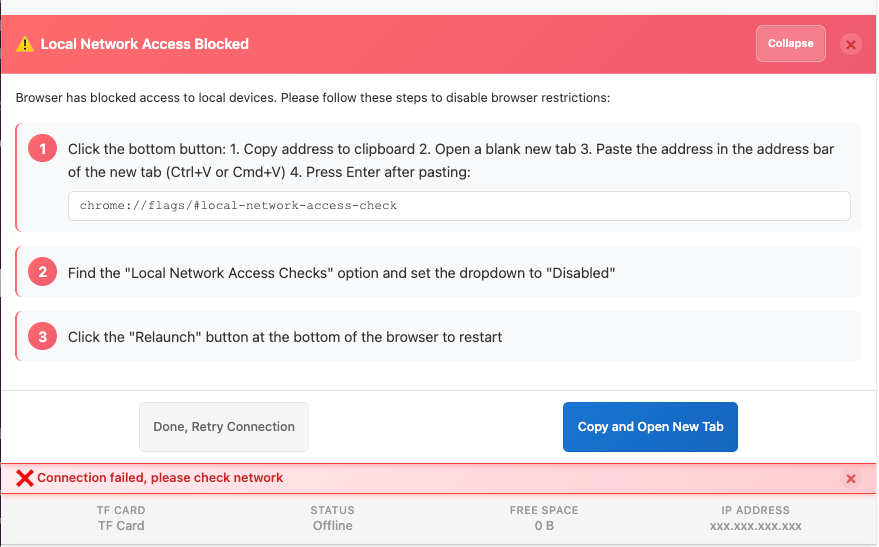
XTEiNK’s sync page instructs users to disable local area network access security checks.
From an end-user standpoint, I had my own concerns:
- The vendor's page was not easy to use. Creating folders and moving files around was a clunky multi-step process over a slow Wi-Fi connection.
- Each change to the security setting requires a browser restart. This means two browser restarts are needed per sync: one after turning the setting off so files can reach the device, and a second restart after turning the security setting back on.
- No guarantees on page stability. The vendor can change the page whenever they like and you would have no recourse. Should someone with malicious intentions gain control of that page, Chrome would allow them to make requests directly into your private network, since the browser protection that normally stops them is switched off.
There's no way I'd endorse disabling security settings on Chrome as a normal way of working, so I asked Claude to plan an alternative solution.
What I wanted in my custom solution
Here are the requirements I gave Claude:
- treat a user-specified folder on the MacBook as the source folder for a specific eReader device;
- allow the user to select a different source folder anytime;
- when the user clicks a "Sync" button, sync or "mirror" the source folder's contents on the device's memory card, including the subfolder directories and any file deletions on the source folder;
- preserve any "last read" position metadata that the eReader creates for each book.
I opted for a "sync" approach because making folder and file changes on the MacBook via the macOS Finder app is much easier than navigating the device's memory card over Wi-Fi and depositing files one at a time. The biggest benefit: my friend doesn't have to learn something new since she already uses Finder daily.
Confirming technical assumptions
Before writing any code, Claude first had to confirm two things: Can we access the eReader over Wi-Fi? And how does the device remember our "last read" location so we don't lose it when we sync?
Learning to access the eReader over Wi-Fi
Here's what Claude did to learn how to access the device:
- Discover the list of valid eReader app requests. Claude downloaded the vendor's sync page and read its JavaScript, which contained the app's logic: a set of plain HTTP requests to list, upload, move and delete files.
- Assess whether the eReader responds as expected. Claude then asked me to open the eReader's transfer screen, which is the only time the device is able to accept requests. With the transfer screen open, Claude then tried each of those requests via curl and Python scripts running on the MacBook.
In less than half an hour, the tests confirmed that the list of requests in the vendor-hosted page was valid for the X3 eReader, and that the eReader responds to requests as expected.
Learning how "last read" positions are stored
Here's what Claude did to learn how the device tracks "last read" locations per book:
- Execute a thorough test plan. Claude created a test EPUB in a test folder on the eReader, then systematically made a series of changes to the card's contents over Wi-Fi.
- Log the result of each test. After each change, Claude asked me to open the test EPUB file on the eReader and confirm whether the "last read" position was still preserved.
Before long, we had our confirmation: the books are tracked on the memory card by filename, so moving a book's EPUB file to another folder on the same card keeps the "last read" location intact, whereas renaming the EPUB makes the eReader treat it as a new book.
This meant we didn't need any special book management logic; we could move books between subfolders without losing the "last read" position.
Bonus: X3 eReader HTTP Requests Reference. I asked Claude to document its findings so others who wish to create their own sync tool have a handy reference as a starting point. See XTEiNK X3 eReader HTTP requests reference.
The new app's user experience
Here's how the solution that Claude coded up works:
Each eReader device gets its own folder on the MacBook, and the user moves any files they want to place on the eReader into that folder.
The user double-clicks a plain sh script named XTEiNK.command on the MacBook to open a local web page, served by a small web server Claude wrote that runs only on the Mac. The web server is powered up by the command script, and it auto-shuts off after 30 minutes of inactivity.
On the web page, there are three buttons:
- Tidy up. The app reads the contents of the "source" folder on my Mac and, if needed, moves "loose" EPUB files (i.e., EPUBs not yet filed under an author) into the relevant author subfolders. It also spots and flags duplicate copies.
- Preview. The app simulates a sync, and shows what file and folder changes the Sync would make to the eReader's memory card so the user can review.
- Sync. The app connects to the eReader over Wi-Fi, copies over any new books, then mirrors any file location changes the user has made in the "source" folder. The user is also asked if they want to delete EPUBs from the device that are no longer on the MacBook source, so the two stay in true sync.
Here's the XTEiNK Sync page in action.
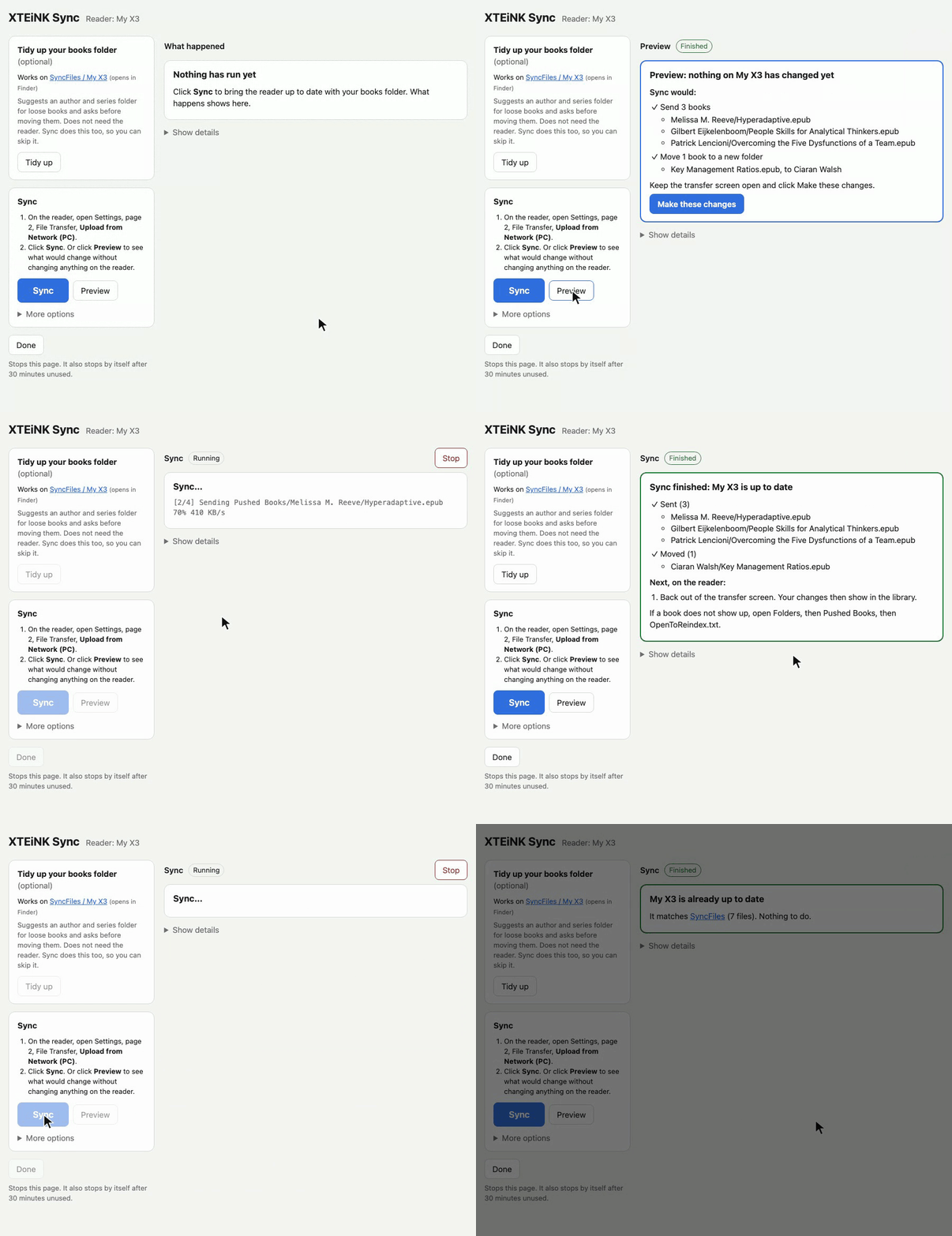
I asked Claude to add a "Show details" feature so I could see the full stream of Terminal activity for easier troubleshooting.
Some closing thoughts
My main takeaways from this experience:
- Personal software is now viable. Large language models (LLMs) and coding harnesses like Claude Code have made "personal software solutions" a realistic option.
- Confirm technical assumptions before coding. So much of the solution design depends on getting them right.
- Get to a working prototype first. I got a proof-of-concept running in Terminal in under an hour, and that gave me the confidence to continue working on it.
- Wrap the Terminal back-end in a friendly front-end. This "last mile" work is what truly elevates the user experience.
- Ask for a "fresh eyes" review. Syncing changes the contents of the eReader's memory card, and the app has to behave correctly regardless of its state. Asking Claude to do a "fresh eyes" review of all state transitions surfaced a few edge cases, such as disabling the "Preview" button when a sync is already running.
In all, it took less than four hours total to go from zero to the version you see in the GIF above. Most of the time was devoted to refining and simplifying the graphical user interface so the tool could be used without typing commands or reading outputs in Terminal.
I'm sure there are third-party, open-source XTEiNK firmware alternatives that can do all this and more (I see you, CrossPoint Reader). For my friend's case, however, we just wanted something simple that removes the Chrome security risk and that she can use without a user manual.
I already have some ideas for improving the app's user interface, thanks to feedback from the Impeccable Style design skill. But that's work I will tackle another day.
P.S. I only downloaded the plain-text skill files from Impeccable Style. I wasn't a fan of installing the accompanying executable without a proper security review.
P.P.S. I remembered the "create consistent logs" lesson from working on my Personal Ops Dashboard, so every XTEiNK sync run has a proper set of logs from day one. 🎉