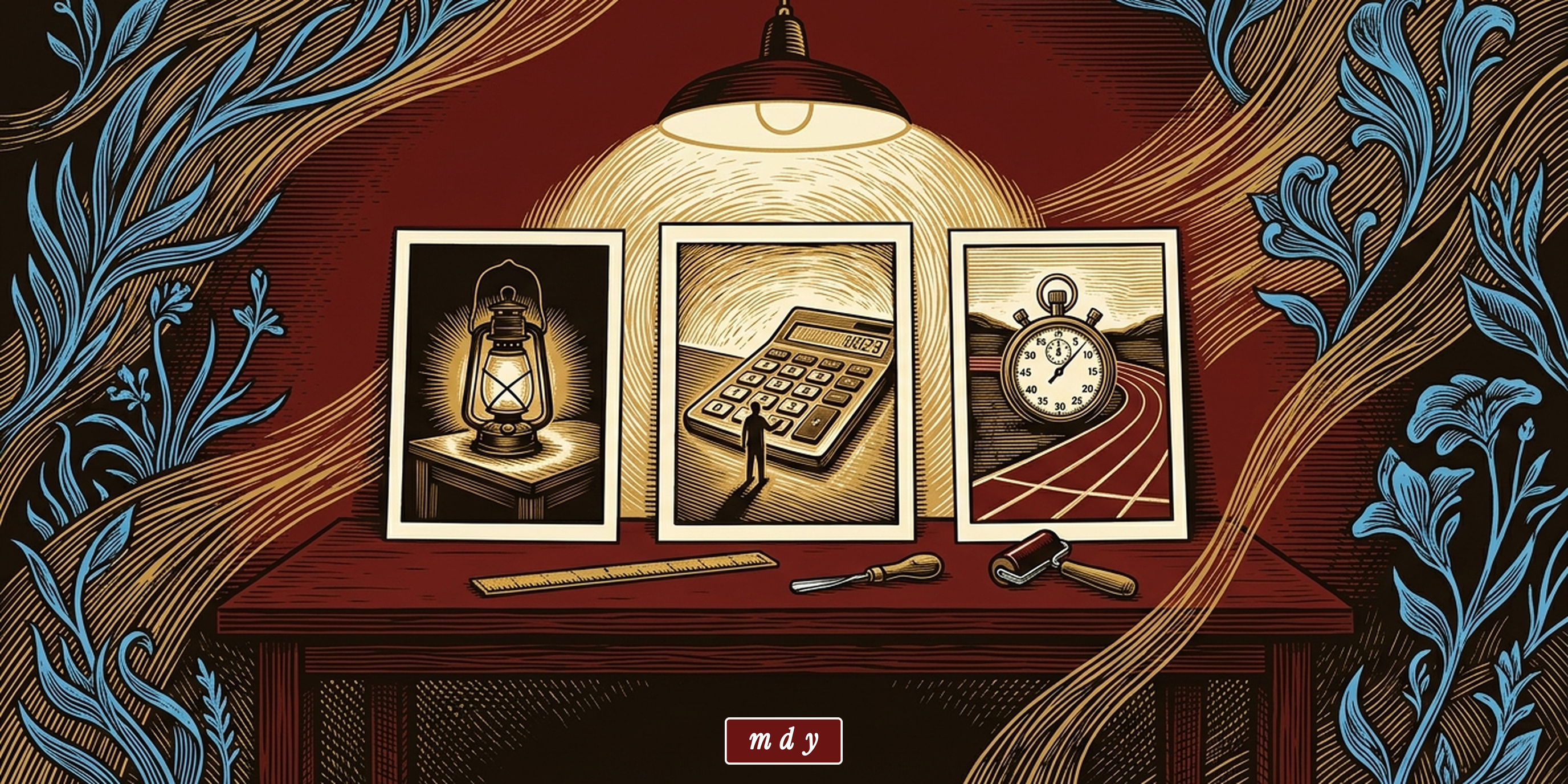
Last week, I watched an enlightening session titled "Branded, Not Generated: What AI Can't Do for Your Brand," delivered by brand architect and visual identity designer Jitka Hrůzová. The session was hosted by the Women Defining AI (WDAI) nonprofit.
Inspired by that session, I set about redoing the featured images of every post on this blog.
Housekeeping note: I use "Claude" to refer to "Claude Code in Terminal running Sonnet 5.5 on Medium effort" throughout this post.
The Before and After
I'll be the first to admit that I did not give featured images much thought when I first picked them. I had added the images mainly because best practice says every blog post must have one.
Since many of these posts were written before the recent improvements in AI image generation, I was mostly searching through royalty-free image sites and grabbing the first one that seemed "good enough." Or I'd try generating an image and give up in frustration when I couldn't bring my idea to life.
The result is a set of featured images that is all over the place. Here are six of them so you can see what I mean.

With Jitka's advice from the session still top of mind (more on her insights at the end), I used Claude and the Gemini 3.1 Flash Image model to create a new and consistent set of featured images for my posts. Below are the six images that replaced the ones above.

The featured image at the top of this post also uses this new look! You can see the rest of the new images at the blog archive.
The Redesign Process
The sections below describe the steps I took to get to the current set of featured images, including the many trial-and-error stumbles I had along the way. (I have thoughts on what I'd do differently at the end of this post.)
Step 1: Find colors that work with the dominant site color
(I include this step for the sake of completeness, but it turned out to be unnecessary. More on why at the end.)
My site's dominant color is a brick red, so I needed colors that work well with it. I also didn't want a single palette because I worried that the resulting set of images would be monotonous.
I did not feel confident about my color language skills, so I asked Claude to come up with a set of palettes.
I’m creating a set of color palettes for illustrated featured images in different styles. Each palette is two-tone: one deep ground color (a dark shade such as charcoal, navy or forest green) plus one lighter glow color that stands out against it.

Every palette must sit well next to my site’s dominant color, hex #6A1414 (a brick red), because the images will appear under a banner in that color.

Create 4 palettes. For each one, give me:

- A short evocative name.
- The ground color and the glow color as hex codes.

Finish with a table of all the palettes, then present the palettes to me in a 2x2 grid.
Claude churned away for a few seconds and came back with this:

At this stage, I wasn't quite sure how I would use these palettes. However, this step did give me confidence in Claude's ability to compensate for my lack of color knowledge.
Step 2: Iterate until you find a look you like
With the initial palettes sorted, I focused on what the images should look like. Image generation models can create a seemingly infinite variety, so I needed to pin down the look.
I started by giving Claude a single image idea — "a lone traveler carrying a lantern across a small stone footbridge at night" — and asked it to generate prompt variations. My aim was to get a set of images with the same subject, each with its own look and feel.
Can you generate four different prompt variations (each with a different look/feel/style) of a single image idea so we can have Gemini generate them one at a time?

Use this image idea: a lone traveler carrying a lantern across a small stone footbridge at night. Give me a wide 16:9 composition and keep the subject in the center.
I then asked Claude to send the image generation prompts to Gemini 3.1 Flash Image and show me the result in a 2×2 grid.
Sidebar: For an unrelated, earlier need, I had asked Claude to walk me through the process of setting up the necessary Gemini API key so it could send image requests to Gemini via the command line interface (CLI). I had also asked Claude to write a small script so it could consistently send image prompts to Gemini and save the image file that comes back. Claude used this script to generate the images below.
Here's an example of what you'd get back from such a prompt.
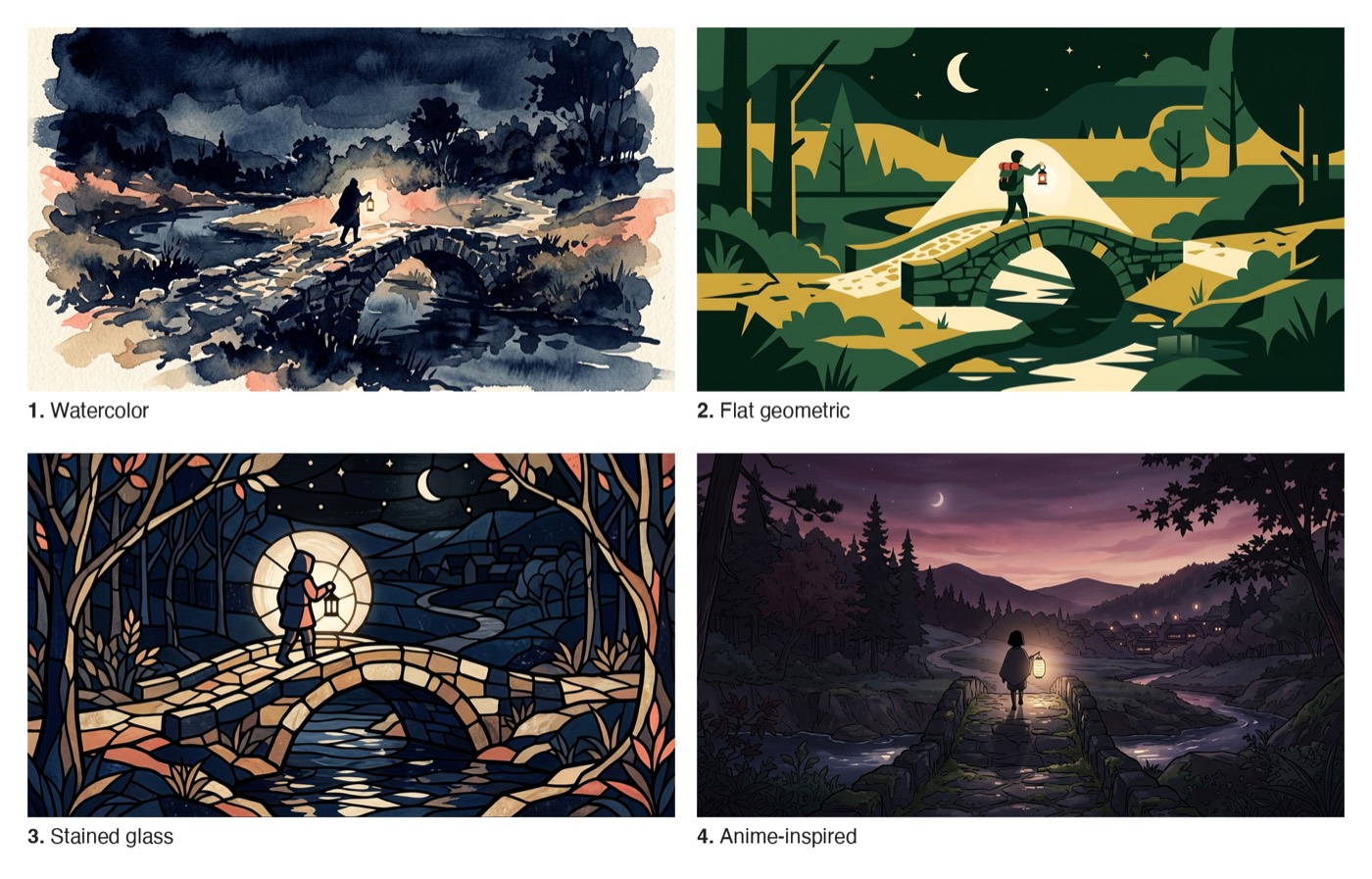
Images like these are all lovely in their own right, but they didn't quite click with me.
In the WDAI session, Jitka had explained that AI tends toward the average, and that it was up to us, the humans, to push for distinctiveness.
With her advice as extra motivation, I kept at it, sending more prompts and generating more images. And since this type of exploration falls squarely in the "I'll know it when I see it" category, it took more rounds of prompting over the course of an hour before I came across the linocut style.
You can get a feel for this style in the image below.
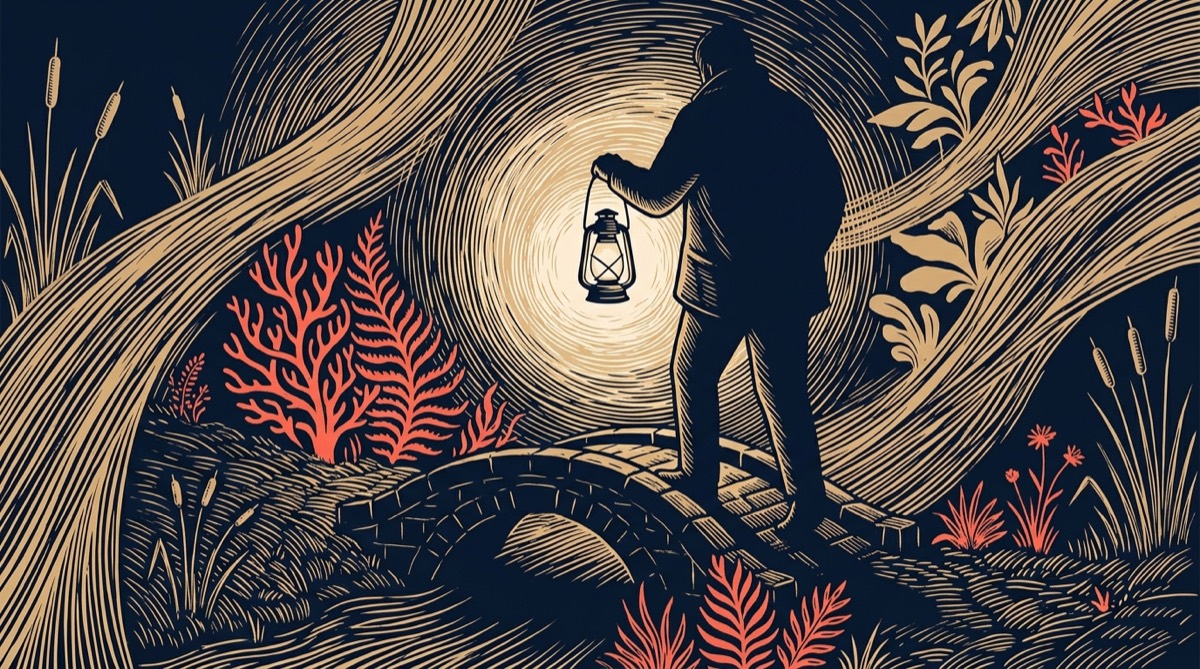
Since I lacked the visual vocabulary to explain why I liked the image, I asked Claude to describe it.
Describe this image in terms that a professional visual designer or illustrator would understand. Be specific enough so I can reproduce the style in other images, and list the characteristics as rules.
Claude's response:
Style: a relief linocut print in four flat inks.
- Medium and mark-making. Imitate a block print. Every tone is built from short, dense, parallel gouge cuts of varying width, never from smooth gradients or soft shading. Shadow is made by thickening and crowding the cuts, and light is made by leaving the paper uncut.
- Four flat inks. Deep navy for the ground (roughly 45% of the image), sand for the body of the scene (the swirling bands, branches, bridge and reeds), coral for the accent plants, and cream for the light. No other hues, no blends, no outlines in a fifth color.
- One light source. One lantern is the brightest, most open area in the picture. Surround it with concentric, slightly irregular rings of fine cuts that thin out toward a pale cream core, as if the light were engraved outward.
- Silhouette for the figure. The person is one solid navy shape seen from behind, with no face and almost no interior detail beyond a few hatch lines where light catches an edge. It is the heaviest, darkest mass, placed beside the glow so the light reads against it.
- Decorative sides. Reeds, cattails and leaves crowd the left and right edges as frame decoration, drawn in clean outlines with light hatching. They add mood but carry none of the meaning.
Step 3: Rebuild the palettes to work with the desired look
Once I looked closely at Claude's image description, I realized my two-tone palettes from Step 1 would not work. The linocut sample that I liked uses four colors, each with a specific job. This meant I needed new palettes.
I asked Claude to turn each palette into a four-color palette, with rules for what each color does. (Claude also helped me assign the colors to their roles.) I asked for additional palettes so there would be enough variety to pair with the different topics I write about. From four palettes, I ended up with fifteen.
I have a set of two-tone palettes (a ground color plus a glow color) for blog post featured images. Here they are:

[paste two-tone palettes here]

Rebuild each one as a four-color palette where every color has a distinct job:

- **Ground:** the dominant dark color, about 45% of the image.
- **Body:** a mid-tone that fills the main subject, about 35%.
- **Accent:** one vivid color, about 15%, that must stand out clearly against the ground.
- **Glow:** about 5%, used only for the light source in the scene.

For each palette, give me:

- A short name.
- The four hex codes labeled by role.
- The topic mood it suits, in two or three words (for example “strategy, planning” or “growth, learning“). Use my blog’s existing categories and tags to identify topics.
- One sentence on the color-theory logic (for example complementary, analogous or split-complementary).

Rules:

- Use color theory, not guesswork, so the four colors are clearly distinct and the accent is never lost against the body.
- Every palette must sit well next to my brand color, #6A1414 (a brick red), because the images appear under a banner in that color. Replace any palette that clashes, or that is too similar to another.
- Check each palette for a missing role. Flag any palette with no real accent, or where the body and ground blur together, and fix it.
- After rebuilding the original set, add new palettes until I have 15 in all, since four-color combinations need more variety than two-tone ones.

Then write a one-paragraph image-generation instruction, in the form “ground: [hex], body: [hex], accent: [hex], glow: [hex]“, that I can reuse in any image prompt. Make it state that the glow color appears only at the light source.
As you can see from the palettes below, Claude made sure that each had a dark ground, a mid-tone body, a vivid accent, and a pale glow.
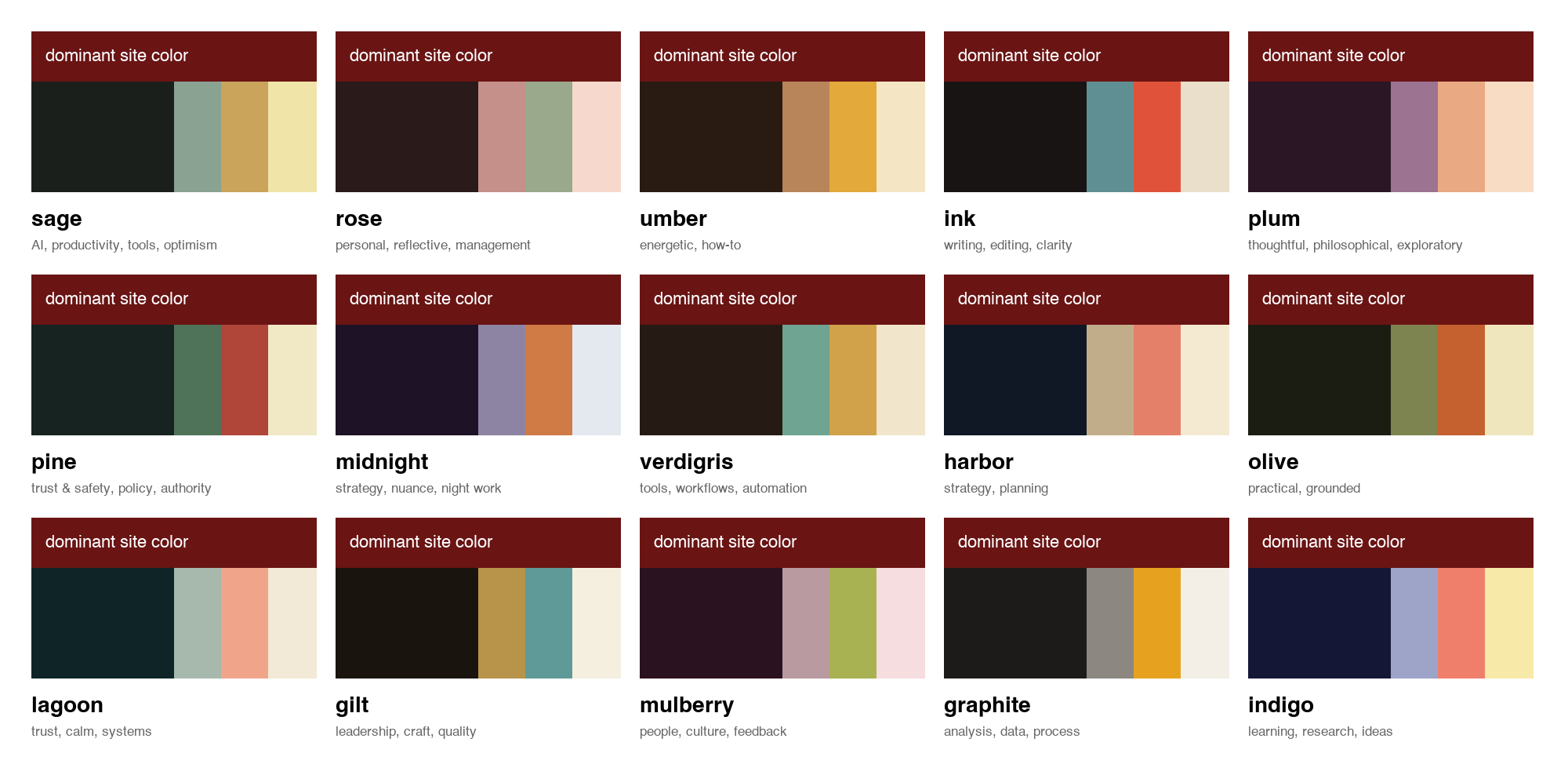
(Note: each palette above is shown under a brick red bar, which means each one is, in reality, a five-color palette. I didn't notice it at the time, but this detail will be important later.)
Claude also matched each palette to a mood so future AI sessions can pick the palette that's best suited to a post's topic. For example, the "harbor" palette suits strategy and planning, "lagoon" pairs with trust and systems, "mulberry" is best for people and feedback, "indigo" is matched with learning and research, and so on.
Step 4: Specify the rules that make the images consistent
In the WDAI session, Jitka had advised us to consider adding repeatable details to establish a visual brand identity. With that advice in mind, I asked Claude to transform the description it generated in Step 2 into a short list of rules that every image must respect.
Here's what Claude wrote up:
- Linocut look. Dark engraved ground with dense hatching, as if printed from a block.
- One idea. Each image presents a single metaphor you can read in a second.
- A single glow. There is always one major light source, and it's the brightest thing in the picture.
- Dominant subject in the middle. The subject is large and central, and well lit by the single glow.
- Themed objects on the sides. The objects on the sides of the image stay out of the dominant subject's way and feature small objects that echo the dominant subject (e.g., coins drifting around a calculator, puzzle pieces around a jigsaw, stopwatches and whistles around a running track). Draw the sides in the body color, but give one in five objects the accent color.
- Center-safe. The image still works when cropped to a square on the center. The subject, the glow, and the accent color are all present in the middle half of the width.
- Four colors with set jobs. Apply the ground, body, accent, and glow color roles defined in Step 3. The accent color must appear at least once within the center square.
- Faceless figures, no text unless requested. People are silhouettes seen from behind or without faces. There should be no words except lettering added on purpose.
- Optionally, a fanciful scale. An ordinary person at rest next to an oversized object, so the scale carries the image concept's meaning.
All these rules are written down once, so they become a fixed recipe that applies to all images.
Step 5: Set up the automated metaphor-to-image pipeline
I asked Claude to extend the pre-existing Gemini prompt-generation script to account for these rules.
The modified script accepts three inputs: a scene, a palette, and the themed sides (the decoration around the main subject). It then packages my inputs with the Step 4 rules and sends the resulting image prompt to Gemini.
I then asked Claude to help me create a cover-image skill that I can invoke any time I want a new featured image. When invoked, the skill takes Claude and me through these steps:
- Claude reads the draft blog post and proposes three concepts. Each concept is one sentence and is deliberately different from the other proposed concepts. Each sentence names the primary subject of the image and the light source.
- I pick one concept. Either I accept one as proposed, ask for a modification to one, or ask for more options until I land on one I like.
- Claude chooses a palette and a side decoration that suit the selected concept and the post's category, then tells me why it picked them. It runs the Gemini generation script using all that as input.
- Claude shows me the resulting image in two ways. When Gemini responds with the image, Claude shows me both the full image and the center-square crop version for my review.
- I provide feedback until I have an image I approve. In most cases, Claude and Gemini get it on the first try. If I'm still not happy after a few turns, I ask Claude to try a different metaphor or concept.
Here are six of the images that came out of this pipeline, for the same six posts I shared at the top:

Step 6: Refine with the designer's feedback
I shared the output of Step 5 with Jitka, mainly to express my appreciation for the session and show her how I'm applying her principles. So I was surprised and truly delighted when she gave me detailed feedback. Her notes were so on point that I felt silly for not thinking of some of this myself.
I quote Jitka verbatim here:
- Bring the brick red in. It's your anchor colour, but it lives in the site header, not in the images themselves. Even a small accent would tie the covers back to your brand.
- Fewer palettes. Fifteen is a lot, and in the "after" images they mostly blended into the same warm brown and ochre. Three or four distinct ones would carry the topic coding more clearly.
- Consistent is not distinctive. This engraved, glowing aesthetic is getting quite common in AI imagery. You've nailed consistency; the next step is your own "weird," one unexpected element nobody else uses.
- Derived vs. chosen. The linocut + golden glow look is beautiful, but right now it's a style you picked rather than one that comes from who you are and how you write. Ask yourself: what would make someone recognise your post with the logo covered?
Here are the changes I made in light of her feedback:
- Bringing back the brick red. I realized from Jitka's feedback that I was effectively working with a five-color palette but was omitting the fifth color, the brick red! So I tried using the brick red as the dominant color of every image. The results were terrible: the brick red ground was too similar in tone to the rest of the image, so the hatching and glow barely stood out. I eventually landed on keeping a near-black ground and using brick red as the second color, aiming to give it about a quarter of each image. I also added a little brick red "mdy" block at the bottom center of each image.
- Reducing the palettes. I asked Claude to fold the fifteen topic moods into six palettes, each now with five colors (a near-black ground, brick red for the large masses, a body color for the linework, an accent, and a glow). The body and accent colors were spaced around the color wheel, so that no two share a main color or an accent. Claude proactively dropped every red, pink, and coral accent, because they would blur into the brick red. I may still reduce this palette further to just three or four, but you can see the six working palettes below.
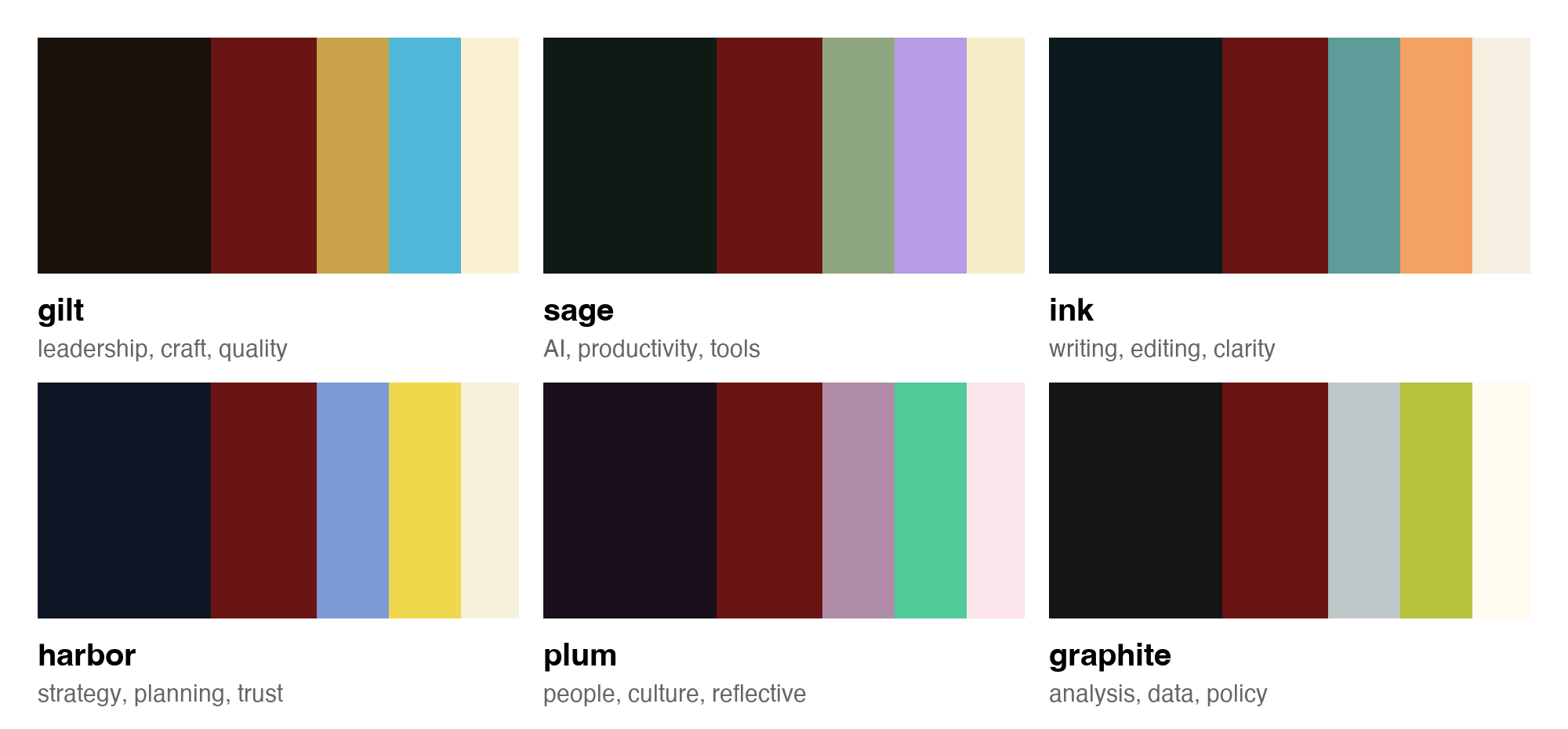
Six five-color palettes: gilt, sage, ink, harbor, plum and graphite. Each has a near-black ground, brick red, a body color, an accent and a glow color. - Adding one unexpected element. Adding the brick red as the second color is my attempt at adding an "unexpected element." By forcing Gemini to use the color this way, we see brick red in unexpected places on the images. It's also what transforms the images from "pretty but generic; usable by practically any site" to "distinct enough that they clearly belong to one site."
- Derived versus chosen. This may be a bit of a cop-out, but I do think the brick red used in this way is what makes the images recognizable as mine and not someone else's. However, the main thing the brick red color says about my identity is that I happen to like the color. 😅 I'll need to give this bit of feedback more thought because it's not something that will be addressed by an updated AI prompt.
With these changes applied, here are the latest images of the same six posts again.
(Note: In an ideal world, I would have asked for Jitka's feedback as Step 5, then incorporated the learning from that into the automated pipeline process as Step 6.)
Some closing thoughts
The biggest takeaways I got from Jitka
Jitka's WDAI session (see her write-up) and subsequent feedback gave me many great takeaways for how to think about my site's visual identity. The biggest ones that stood out to me, and which I applied here, were:
- Distinctiveness must be added by the human because AI design averages everything. It took me an hour of iterating to find the linocut style. And even then, the images were still generic enough to be used on any site. The distinctiveness came when I added the brick red, which Claude did not decide for me.
- Embrace your weird because it's what makes you distinct. Add one unexpected element nobody else uses. What would make someone recognize your work with the logo covered? In my case, my first attempt at this is to use brick red as the second color on a five-color palette.
- Consider adding repeatable details to establish the brand. In my case, the repeatable details were the linocut texture, the themed sides around the subject, the single glow, the center-safe crop, and the "mdy" block at the bottom center. Together, they make a row of featured images look like a cohesive, related set.
- Give the AI rules, not vibes if you want it to be consistent. That's what Step 4 of this process was all about: transforming the repeatable details into rules.
What I'd do differently
The steps above are presented in the order I did them, which was way more circuitous than it needed to be.
- I had started with palettes in Step 1 because I didn't trust my ability to make proper color choices. It was a superfluous step that I could have completely skipped.
- It took Jitka's feedback about putting brick red in the images for me to realize that I actually had five-color palettes and that the brick red was missing from the images. That was undoubtedly my biggest #facepalm moment in this entire process.
- I prematurely automated the pipeline in Step 5, thinking I was done with the redesign process. Jitka's feedback sent me back to rework the palettes, the rules, and the script, which meant the pipeline needed an update too.
I'm also still wrestling with the "derived vs. chosen" identity question. Linocut is a style I picked for the vibes; it doesn't come from who I am or how I write. It's entirely possible that I end up redoing all my featured images again once I know the answer to this question.
My advice after all this: If you want to try this featured image redesign process yourself, first nail your identity and find the distinctive look that reflects your "weird." Only after that should you build the palettes and pin down the repeatable elements. Approaching this exercise in the logical order would have saved an hour or so of rework (and more than US$20 in image re-generation costs 😅).
While there's still more identity work to be done, every post on this blog now has a brick red linocut-style image, and I'm feeling both accomplished and challenged to do better still.
Thank you, Jitka Hrůzová, for so generously sharing your expertise and being such an inspiration!
If you're looking to level up for your brand in a holistic way, you should consider Jitka's services, and carve out the time and space to reflect on your brand identity.
P.S. While the design principles came from Jitka, their application here is my own interpretation. Jitka generously provided her feedback, but did not work on or approve this design (and I'm certain it would not pass her exacting standards 😅).
P.P.S. Jitka has a write-up about the session on LinkedIn. WDAI members can watch the recorded session in the Resources portal. If you're not yet a WDAI member, it's always a good time to join.